Bluetooth Keyboard & Mouse Combo for iPad, Mac & TV
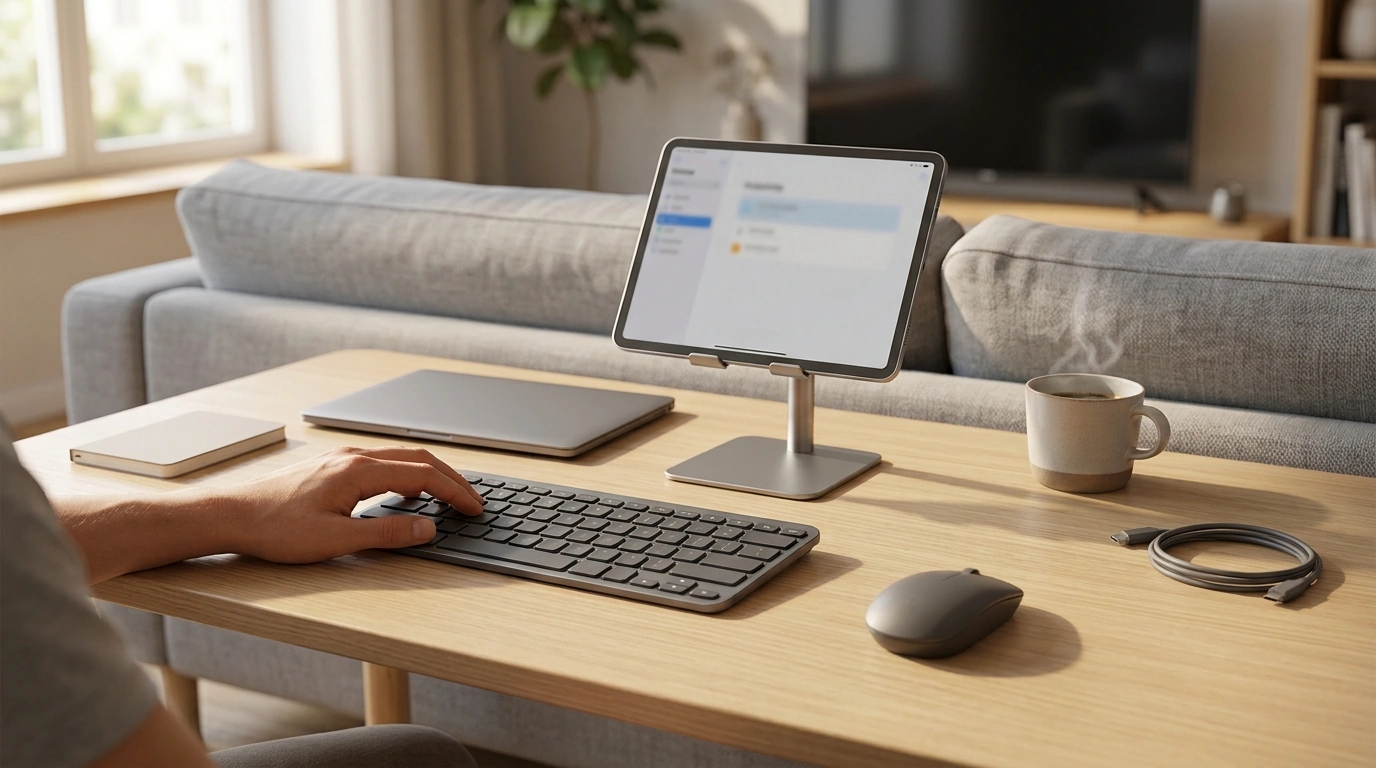
Wireless Bluetooth Keyboard + Mouse Combo for iPad, MacBook, and TV Setups
A compact Bluetooth keyboard and mouse combo can turn an iPad into a light productivity station, keep a MacBook desk setup clutter-free, and make text entry on supported TV devices far less tedious. This guide covers compatibility, pairing steps, everyday use, and practical buying considerations for a smooth Apple-first experience across multiple screens.
Who This Combo Fits Best
- iPad users who want a more laptop-like workflow for notes, documents, and messaging
- MacBook owners who prefer a wireless, travel-friendly input set or a minimalist desk setup
- Living-room viewing setups where typing searches, passwords, or messages with a remote is slow
- Students and remote workers needing a budget-friendly keyboard and mouse without extra dongles
- Anyone switching between devices who values quick reconnection and consistent controls
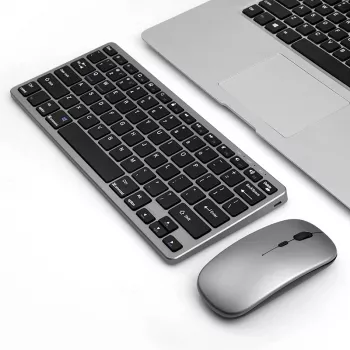
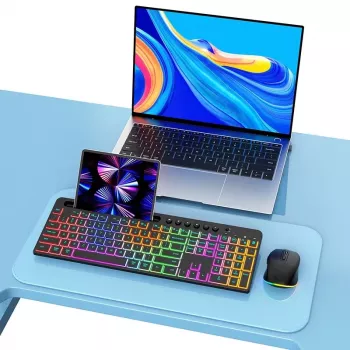
If you’re building a simple Apple-friendly setup, start with a reliable input pair like the Wireless Bluetooth Keyboard Mouse Combo for Apple iPad MacBook TV Devices. For desk comfort, pairing it with a stable riser such as the Silver Aluminum Laptop Stand helps keep screens closer to eye level during longer sessions.
Compatibility and What to Check Before Pairing
- Bluetooth support: confirm the iPad, MacBook, or TV device supports Bluetooth input accessories
- Mouse support on iPad: ensure iPadOS supports pointer devices and that AssistiveTouch/pointer settings are available when needed
- TV devices: some smart TVs and streaming boxes support Bluetooth keyboards/mice, but app behavior varies (typing usually works more consistently than mouse navigation)
- Language/layout needs: verify the physical keyboard layout matches preferred typing habits
- Charging or batteries: note whether the keyboard/mouse uses rechargeable power or replaceable batteries, and keep spares/charging cable accessible
Quick Compatibility Checklist
| Device | Keyboard input | Mouse/pointer input | Notes |
|---|---|---|---|
| iPad (iPadOS) | Yes (Bluetooth) | Yes (Bluetooth pointer) | Pointer settings may be adjusted in Accessibility; app support varies |
| MacBook (macOS) | Yes (Bluetooth) | Yes (Bluetooth) | System Settings provides full customization options |
| Smart TV / streaming device | Often | Sometimes | Typing in search/login fields is common; mouse behavior depends on OS/app |
For Apple devices, pairing is usually straightforward. Apple’s official steps for iPad pairing are outlined here: Apple Support: Connect Bluetooth devices. For Mac, Apple documents Bluetooth accessory pairing and settings here: Apple Support: Connect a Bluetooth device on Mac. If you’re curious about how Bluetooth behaves across versions and environments, the Bluetooth SIG overview is a helpful reference.
Setup: Pairing Steps for iPad and MacBook
- Charge or install batteries before first use to avoid pairing dropouts
- Turn on Bluetooth on the device and place the keyboard and mouse into pairing mode (typically via a switch or dedicated pairing button)
- On iPad: open Settings → Bluetooth, select the keyboard/mouse when it appears, and follow any on-screen pairing prompts
- On Mac: open System Settings → Bluetooth, choose the accessories, and confirm pairing; check Keyboard settings for layout and key repeat
- Test basics: type in Notes/TextEdit and verify mouse click, scroll, and pointer movement; adjust tracking speed if needed
A quick real-world test that catches most issues early: open a text field (Notes on iPad, TextEdit on Mac), type a full sentence, then try click-and-drag selection with the mouse. If you notice delayed clicks or missed keystrokes, it’s often a battery level or distance problem rather than a pairing problem.
Using It Across Multiple Devices (Switching and Reconnecting)
- If the combo supports multi-device switching, map each channel/device and label it (e.g., iPad = 1, Mac = 2, TV = 3)
- If it supports single remembered device, disconnect Bluetooth on the current device before pairing with a new one to reduce conflicts
- Keep devices within typical Bluetooth range and avoid placing them behind dense metal objects that can weaken signal
- When reconnecting, wake the keyboard/mouse first (key press/click) and then wake the device screen to speed up reconnection
- If connections lag after sleep, toggle Bluetooth off/on on the host device as a quick reset
Comfort and Everyday Workflow Tips
One small upgrade that changes daily comfort: raise the screen and bring the keyboard/mouse to a consistent spot. With a desk riser like the Silver Aluminum Laptop Stand, your shoulders and neck tend to relax because you’re not looking down as much—especially when you’re using an iPad on a stand and treating it like a mini workstation.
Living-Room and TV Use: What Works Well (and What May Not)
For TV use, set expectations: keyboards are usually the win, mice are the bonus. If your goal is painless logins and search queries, a keyboard + mouse set like the Wireless Bluetooth Keyboard Mouse Combo for Apple iPad MacBook TV Devices can significantly reduce the “scroll, click, backspace, repeat” routine you get with a remote.
Troubleshooting Common Issues
Recommended Add-Ons for a Better Setup
For a simple two-item upgrade path, combine the keyboard and mouse combo with the aluminum laptop stand to create a cleaner, more comfortable work surface without adding extra hubs or dongles.
FAQ
Will a Bluetooth keyboard and mouse work with an iPad?
Yes. iPadOS supports Bluetooth keyboards broadly, and it also supports Bluetooth mice/trackpads through pointer features (sometimes adjusted in Accessibility settings), though mouse behavior can vary by app. Turn on Bluetooth, put the accessories in pairing mode, and select them in Settings.
Can the combo be used with a smart TV or streaming device?
Often yes for typing in search and login fields, as many TV platforms accept a Bluetooth keyboard. Mouse support is less consistent and depends on the TV OS and the specific app, so navigation may be limited even if the mouse pairs successfully.
Why does the mouse or keyboard keep disconnecting?
The most common causes are low battery, too much distance, or interference from other wireless devices. Re-pairing (forgetting the device and pairing again), keeping the accessories closer, and waking the keyboard/mouse before waking the screen typically improves stability.







Leave a comment