Connect a Wireless Keyboard & Mouse to a MacBook
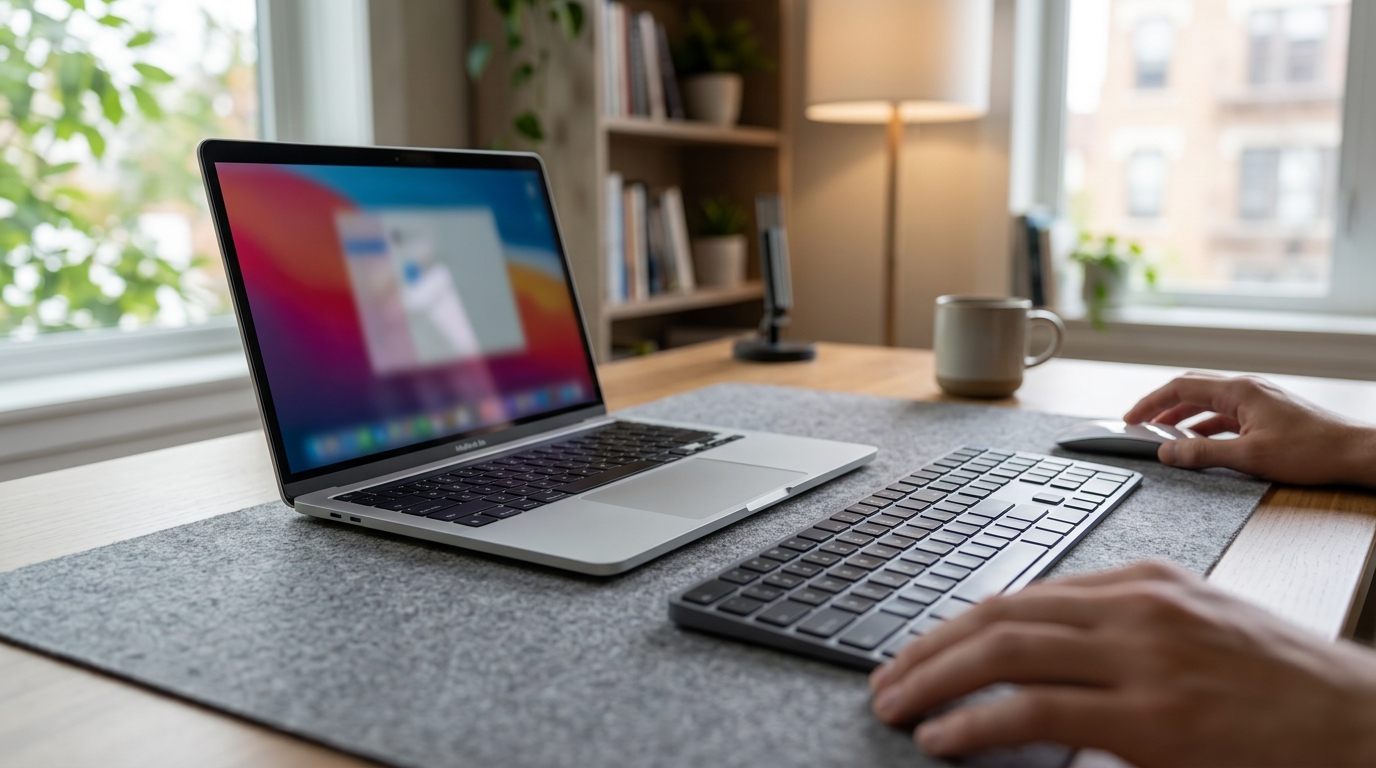
Can you Connect a wireless keyboard and mouse to a MacBook?
Yes. A MacBook can connect to a wireless keyboard and mouse either over Bluetooth or with a USB receiver (dongle), depending on the model you bought. Once paired, they’ll work just like built-in input devices, and macOS will remember them for faster reconnects later.
Option 1: Connect via Bluetooth (most common)
First, make sure your keyboard and mouse have fresh batteries or are charged, then turn them on. On your MacBook, open System Settings (or System Preferences on older macOS) and go to Bluetooth, then turn Bluetooth on. Put each accessory into pairing mode (usually by holding a pairing button until a light blinks), select it when it appears, and click Connect.
If macOS asks for a code, type it on the keyboard and press Return/Enter. For a mouse, you typically just click Connect. Repeat the process for the second device.
Option 2: Connect with a USB receiver (2.4GHz wireless)
Some wireless combos use a small USB-A receiver. If your MacBook only has USB-C ports, plug the receiver into a USB-C adapter or hub, then insert it. Many receiver-based devices connect automatically within a few seconds; no Bluetooth pairing is required.
Quick fixes if it won’t connect
If either device doesn’t show up, move it closer to the MacBook and try pairing again. Toggle Bluetooth off and on, or restart your Mac. For receiver models, try a different USB port or unplug/replug the dongle. Wireless interference from other peripherals can also cause dropouts, so spacing devices out can help.
For a cleaner, cable-light setup (including tips for matching a wireless combo to your desk and MacBook ports), visit the full guide here: https://stunningofferingclub.shop/guide-mac-wireless-rgb-keyboard-mouse-combo-clean-setup/.
FAQ
Why is my wireless keyboard typing laggy on Mac?
Lag is usually caused by low battery, interference, or a weak connection. Charge/replace batteries, move the receiver or device closer, and disconnect other nearby wireless devices to test.







Leave a comment